Manually Match TE Tests
Introduction
In this section, you will go through the configuration steps to manually find existing ThousandEyes tests and assign them to a browser RUM application within the AppDynamics controller. This process allows you to add the ThousandEyes tests you want to the Browser App Dashboard in AppDynamics, so you can see more data with fewer tools.
Manually Match TE Tests Reference Only
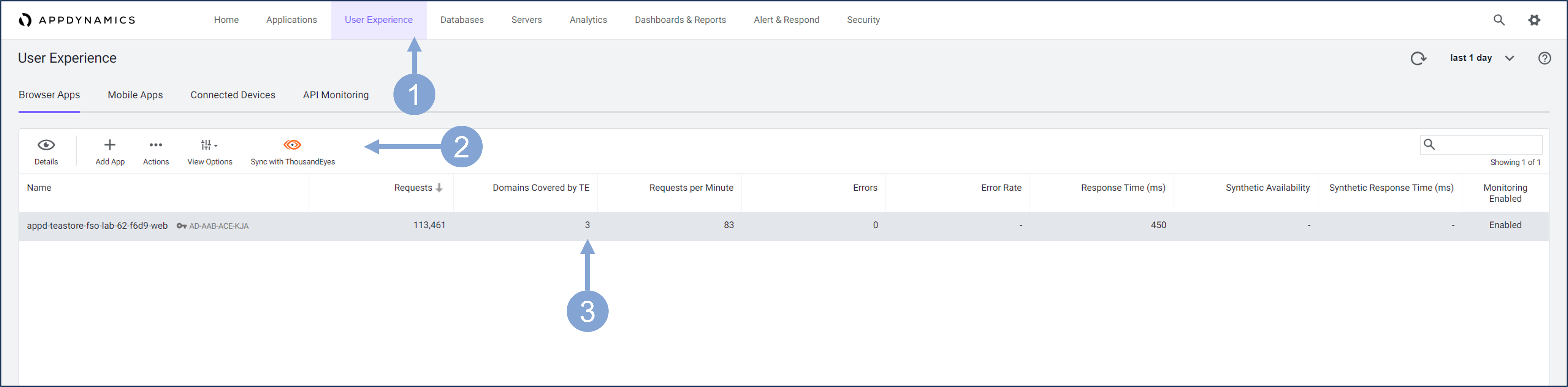
Open the Cisco AppDynamics controller. Use the steps you previously used to log in to AppDynamics if you were logged out.
- Navigate to User Experience menu
- A Browser Real User Monitoring (BRUM) application is used to monitor the interaction of real users with the teastore web application. If network tests are configured in ThousandEyes, you can click the Sync with ThousandEyes button. This will attempt to automatically match domains monitored by both AppDynamics and ThousandEyes and transfer the test results from ThousandEyes to AppDynamics
- Before synchronization, you need to ensure that AppDynamics and ThousandEyes are integrated via a token, as you see in the Configure the OAuth Bearer Token
- The integration with ThousandEyes that you see in the following figure covers 3 application domains with the ThousandEyes tests, but they may not all be automatically detected. For some domains, you can manually match the tests you want to bring to AppDynamics, as you will see in the next steps
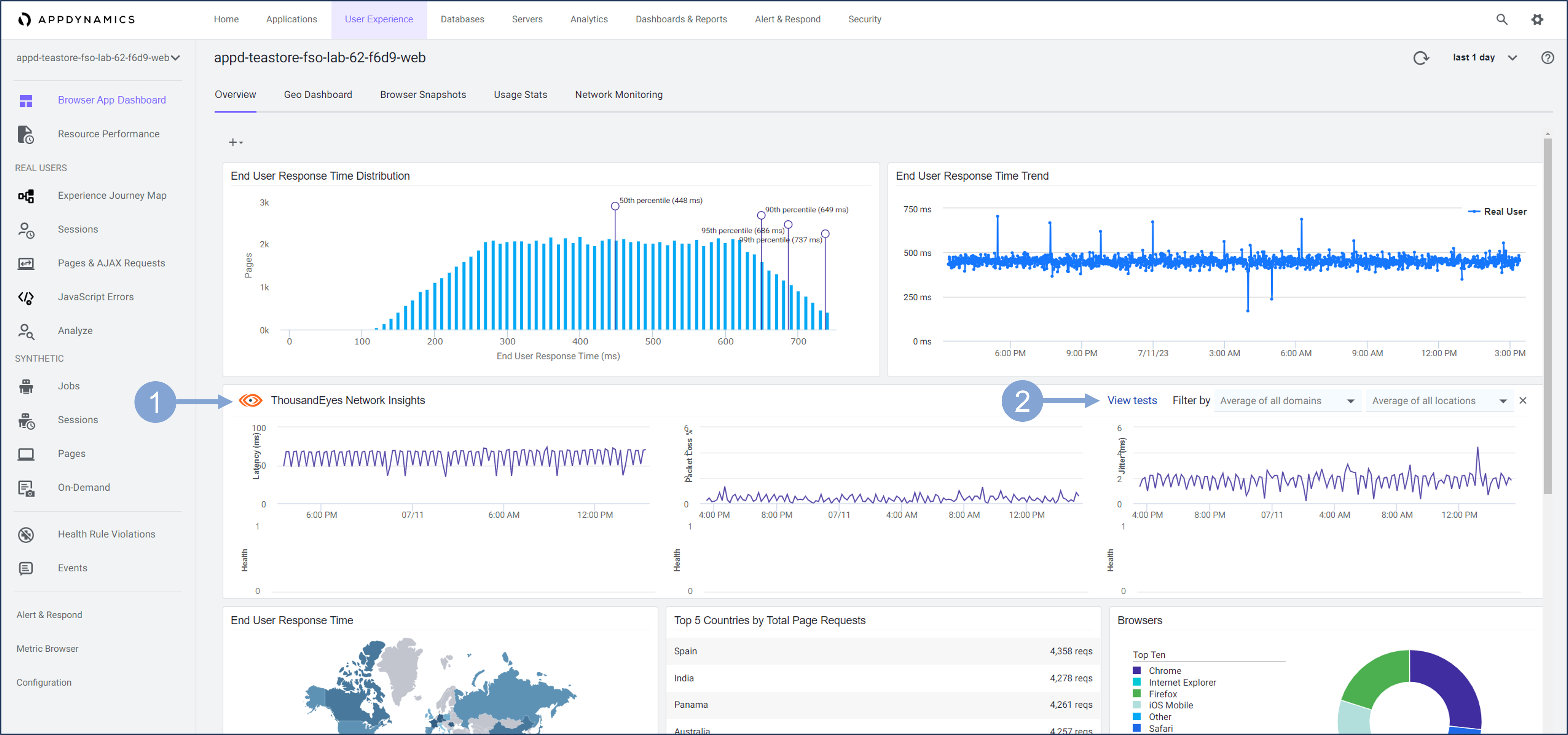
Double-click the BRUM application to open the Browser App Dashboard 1. The ThousandEyes Network Insights widget is included in the dashboard so teams can see ThousandEyes test results in the same view without leaving the AppDynamics controller 2. Click the View test link
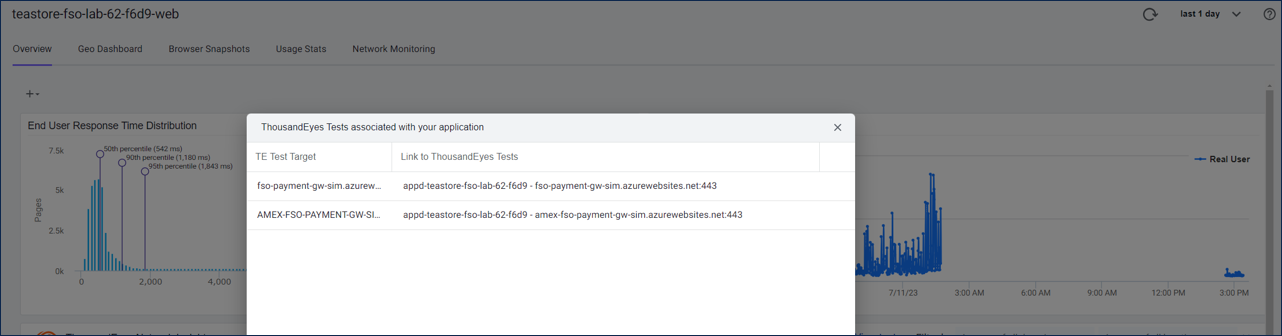
A new pop-up window shows you the ThosusandEyes tests associated with the BRUM application. If you click on one of the tests, you will be redirected to the ThousandEyes platform where you can view the test details.
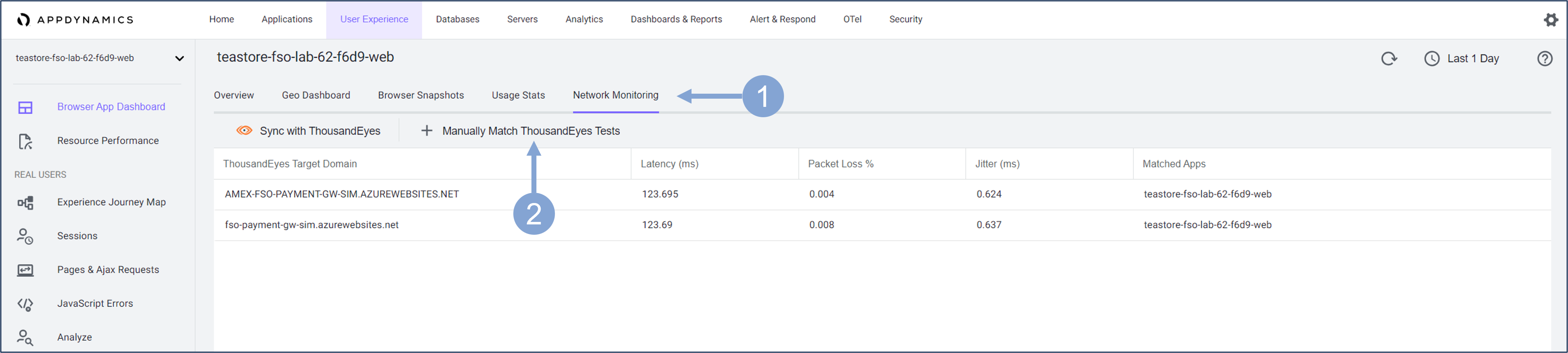
In addition to the automatic synchronization of tests by AppDynamics, you can also synchronize the desired tests manually.
- In the Browser App Dashboard, select the Network Monitoring tab
- A list of current ThousandEyes tests with basic network metrics is displayed
- Click the Manually Match ThousandEyes Tests button
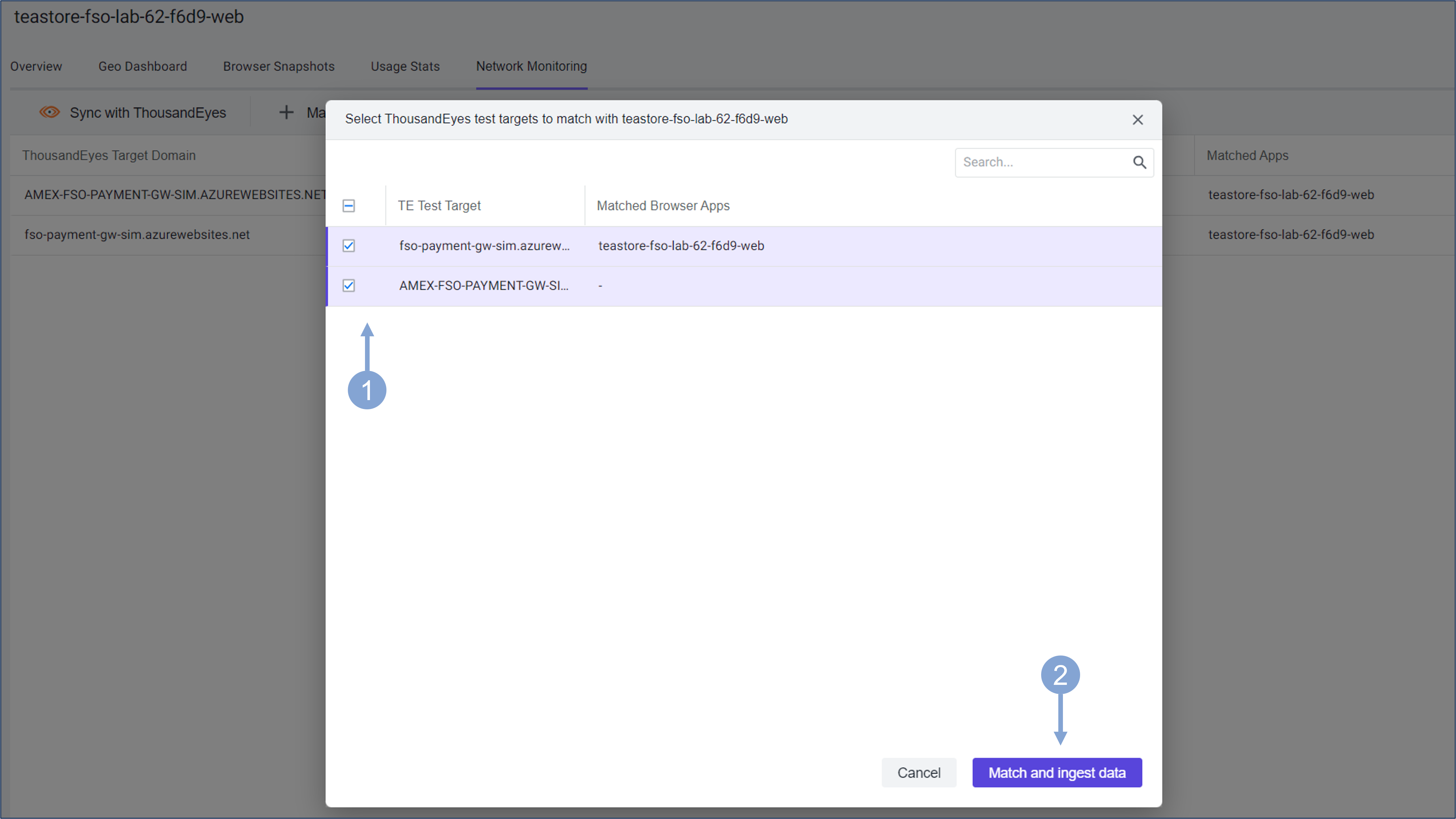
A list of all available ThousandEyes tests appears for selection.
- Select the ThousandEyes tests that you want to match with the current Browser app that you are monitoring in AppDynamics
- Instead of the test names, the list shows the test target domains
- Click Match and ingest data to start the process of synchronizing the tests with AppDynamics
All tests, whether automatically synchronized or manually matched, can now be viewed in the ThousandEyes Network Insights widget.
- Filter the ThousandEyes test metrics by selecting the monitored domains for which you want to view the data and the agent locations you are interested in
- You can also view the average of all tests and all sites
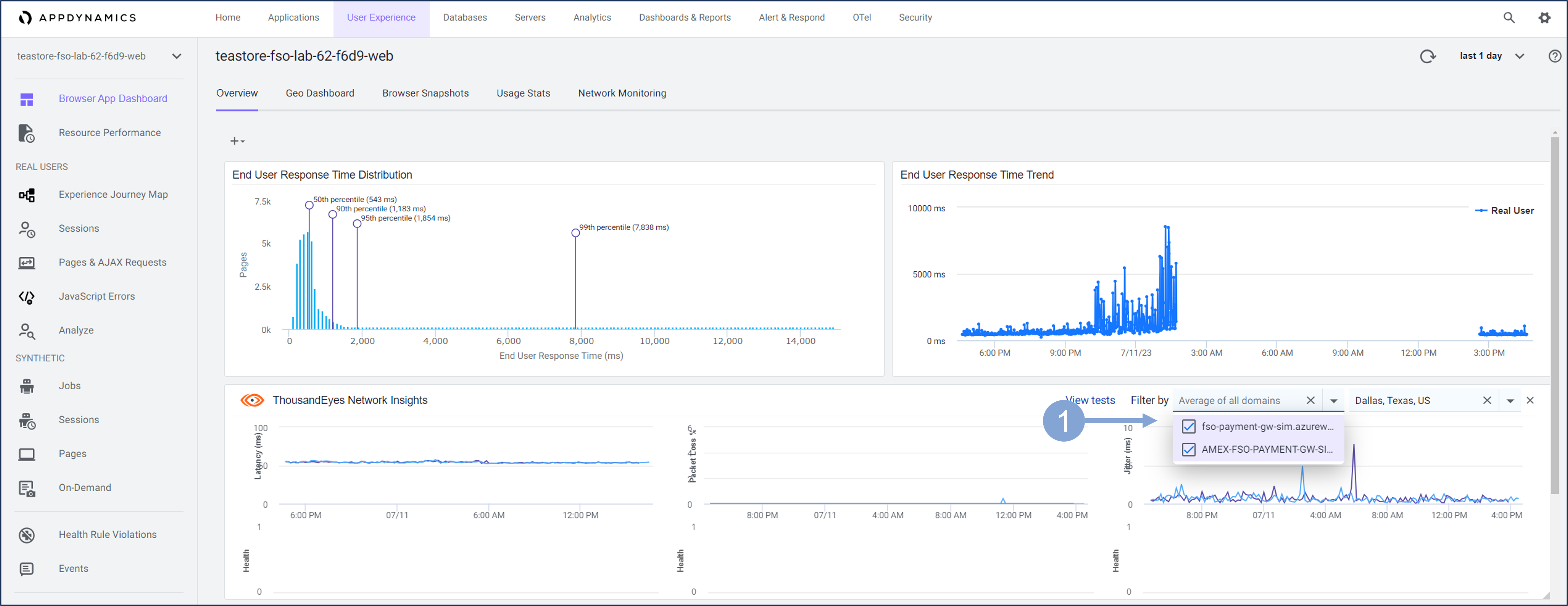
By manually reconciling the test domains, you have successfully brought in the associated ThousandEyes test data so that teams can quickly see network performance for the monitored domains without leaving the AppDynamics Controller and Browser App Dashboard. This gives you more time to focus on solving the digital experience issues, not on which tool to use.
You can find more detail about Manually Matching TE Tests here.
Next
You will walk through the setup of ThosuandEyes Alert Notifications.